Adopting Liquid Glass, Part V (Singapore Buses, Finishing Touches)
Adopting Liquid Glass, Part V (Singapore Buses, Finishing Touches)

Maps, Search, toolbars and tab bars were covered in Adopting Liquid Glass, Part I (Singapore Buses) and Adopting Liquid Glass, Part IV (Singapore Buses, Revisiting the Tab Bar). Arrivals, Routes, Advertising, and Settings are the last four areas that have seen some tweaks.

Arrivals

Overall, the Arrivals view has seen very little in the way of change.

The Favourite and Arrival Notification buttons have a slightly different tinting behaviour when selected, while the Live Activity bolt button now presents a popover menu to the user. Tips, via TipKit, have also been added to explain what these buttons do when selected.

0:00
/0:02

Tips via TipKit

Routes

The Routes view maintains consistency with previous releases. However, the Route Map has been given some additional flexibility—ability to view in 3D, panning, rotating and zooming—so that it can take advantage of the Apple Maps ‘Detailed City Experience’. It’s also using glassified titles.
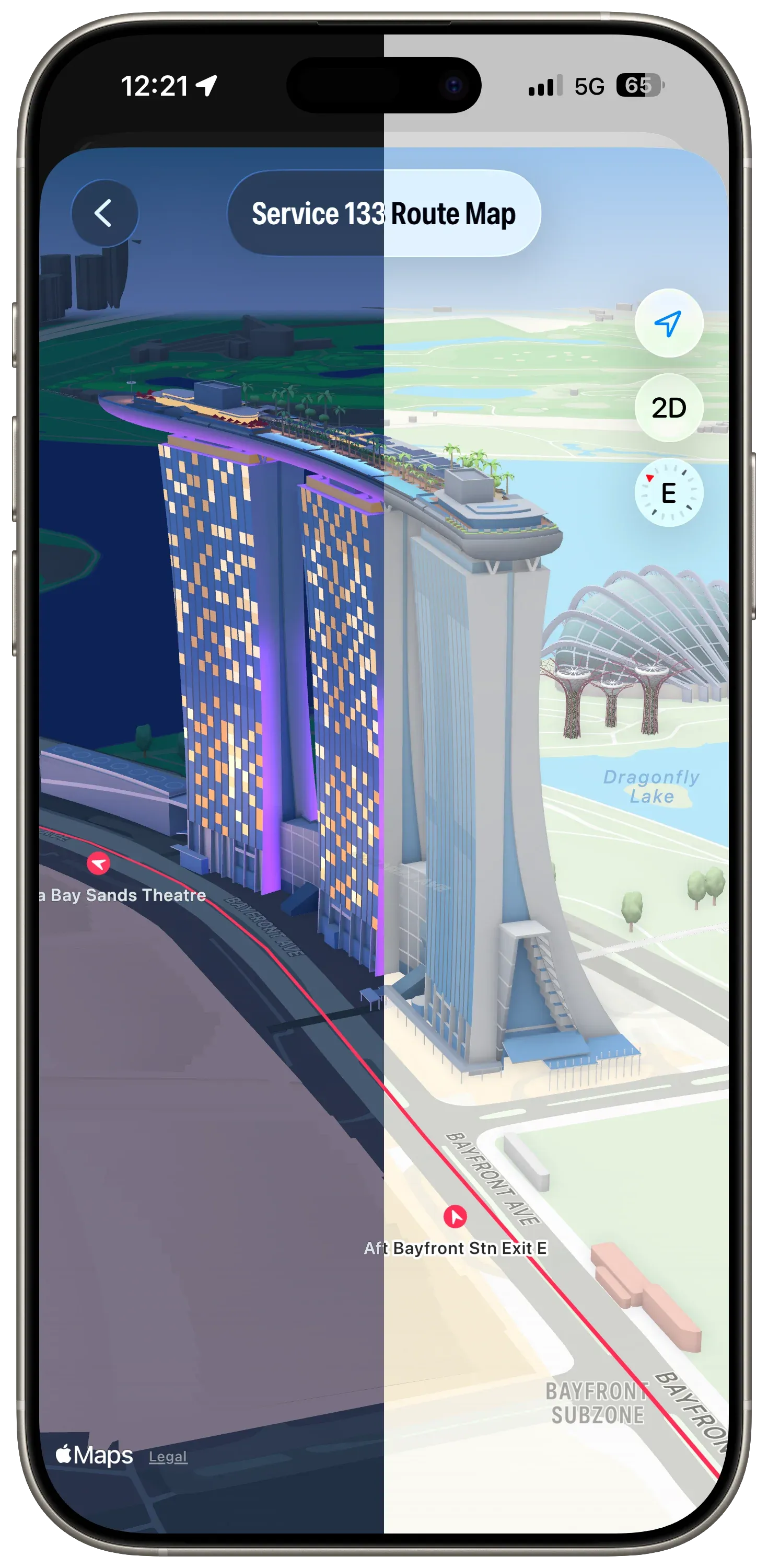
Routes at Marina Bay Sands. Dark mode, light mode.

When the map is rotated, the bus stop annotations rotate in real time so they always point to the next stop on the route.

Advertising

I was playing with different ad placement and styles just before this Mastodon post was made. In the Singapore Buses’ App Store build ads can appear in a few places—at the top of, between, or at the bottom of List sections, or at the bottom of the map.

In the Liquid Glass update, I’ve settled on ads having a consistent placement in the bottom safe area—across Arrivals, Search, and the Route Map. And, staying on brand, they’ve also been Liquid Glassed.

0:00
/0:07

Liquid Glass Advertising on top of the Map

Settings

Settings has some new features: more theme colours, a new acknowledgment view, and a new explainer view for Arrivals. However, there’s nothing new that’s specific to Liquid Glass (thankfully).

What’s Next?

As the work on this update comes to a close, my attention is now on the App Store. New App Store videos, screenshots, app description, and release notes. In addition to all the Liquid Glass changes, there’s a host of other changes that have been made as well. For example, GRDB has replaced Core Data…and the app now runs natively on the iPad. 🤯

A TestFlight build is coming soon.
Adopting Liquid Glass, Part IV (Singapore Buses, Revisiting the Tab Bar)

Adopting Liquid Glass, Part IV (Singapore Buses, Revisiting the Tab Bar)

In my first article in this series, Adopting Liquid Glass, Part I (Singapore Buses), I ran into a critical bug that made it problematic to adopt the new Tab Bar design:

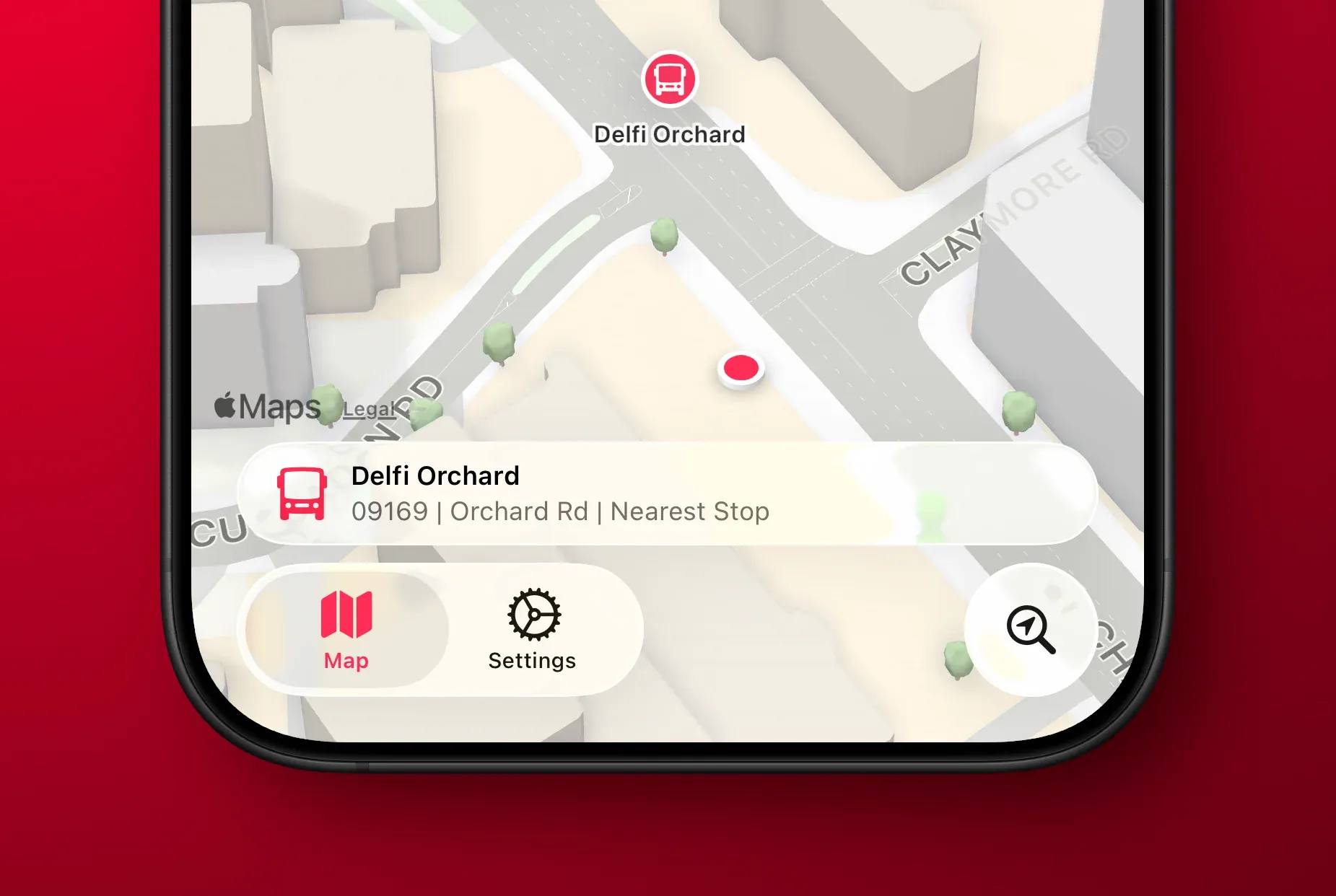
On my Map tab I was using a tabViewBottomAccessory to show the nearest bus stop to the user—to give them an easy way to tap and show arrival information. However, the accessory was available across all tabs where it made no sense (like Settings). Trying to hide the accessory (using EmptyView) when the selected tab wasn’t the map worked, but navigating back to the map caused the map to stop extending into the safe area, resulting in a lovely white bar along the top.

Luckily, this bug has been fixed in the recent betas so I’ve revisited my original design and the outcomes are positive.

Tab Bar Bottom Accessory Visibility

From a usability perspective, it only makes sense to display the accessory when two conditions are met:

  1. The map tab is displayed; and,
  2. The user has given permission to track location

The simplified code below shows how this is achieved when tracking the tab bar selection:

enum Tabs: Equatable, Hashable {
    case maps
    case settings
    case search
}

@main
struct sgbusesApp: App {

    // MARK: State
    @State private var selectedTabIndex: Tabs = .maps

    var body: some Scene {
        WindowGroup {
            TabView(selection: $selectedTabIndex) {
                Tab("label.title.map", systemImage: "map", value: .maps) {
                    BusStopMapView()
                }

                Tab("label.title.settings", systemImage: "gear", value: .settings) {
                    SettingsView()
                }

                Tab("label.title.search", systemImage: "location.magnifyingglass", value: .search, role: .search) {
                    BusStopListView()
                }
            }
            .tabViewBottomAccessory {
                if selectedTabIndex == .maps {
                    HStack {
                        Image(systemName: "bus.fill")
                            .font(.body)
                        VStack(alignment: .leading) {
                            Text(verbatim: database.allStops.first!.busStopDescription)
                                .font(.caption)
                                .bold()
                            Text(verbatim: (database.allStops.first!.busStopCode) + " | " + (database.allStops.first!.roadName) + " | " + "Nearest Stop")
                                .font(.caption)
                                .foregroundStyle(.secondary)
                        }
                        Spacer()
                    }
                    .padding(.vertical, 4)
                    .padding(.horizontal)
                    .contentShape(Rectangle())
                    .onTapGesture {
                        // show bus arrivals
                    }
                } else {
                    EmptyView()
                }
            }
        }
    }
}

Ensuring Legibility

One of the main concerns with Liquid Glass is legibility. This is even more a of concern when using a tab bar bottom accessory as there is now text where there wasn’t any in my previous toolbar-based design.

To keep things legible, Singapore Buses uses a muted map style. This provides a reasonable balance: the glass effect remains fun to look at without becoming a distraction, even when the map is busy with content.

0:00
/0:08

The ‘Detailed City Experience’ is so, well, detailed!

Assuming the tab bar doesn’t undergo some wild design changes between now and the iOS 26 release candidate, my intention is to ship the next version of Singapore Buses with a tab bar.

The next (and final) article in this series will look at the remaining views: Arrivals, Routes, and Settings. I’ll post that closer to release.

Adopting Liquid Glass, Part III (NetNewsWire iOS)

Adopting Liquid Glass, Part III (NetNewsWire iOS)

NetNewsWire has an experimental branch with work-in-progress Liquid Glass changes. These changes cover the Mac, iPad, and iPhone apps. This post covers changes to the iPad and iPhone app.

iPad

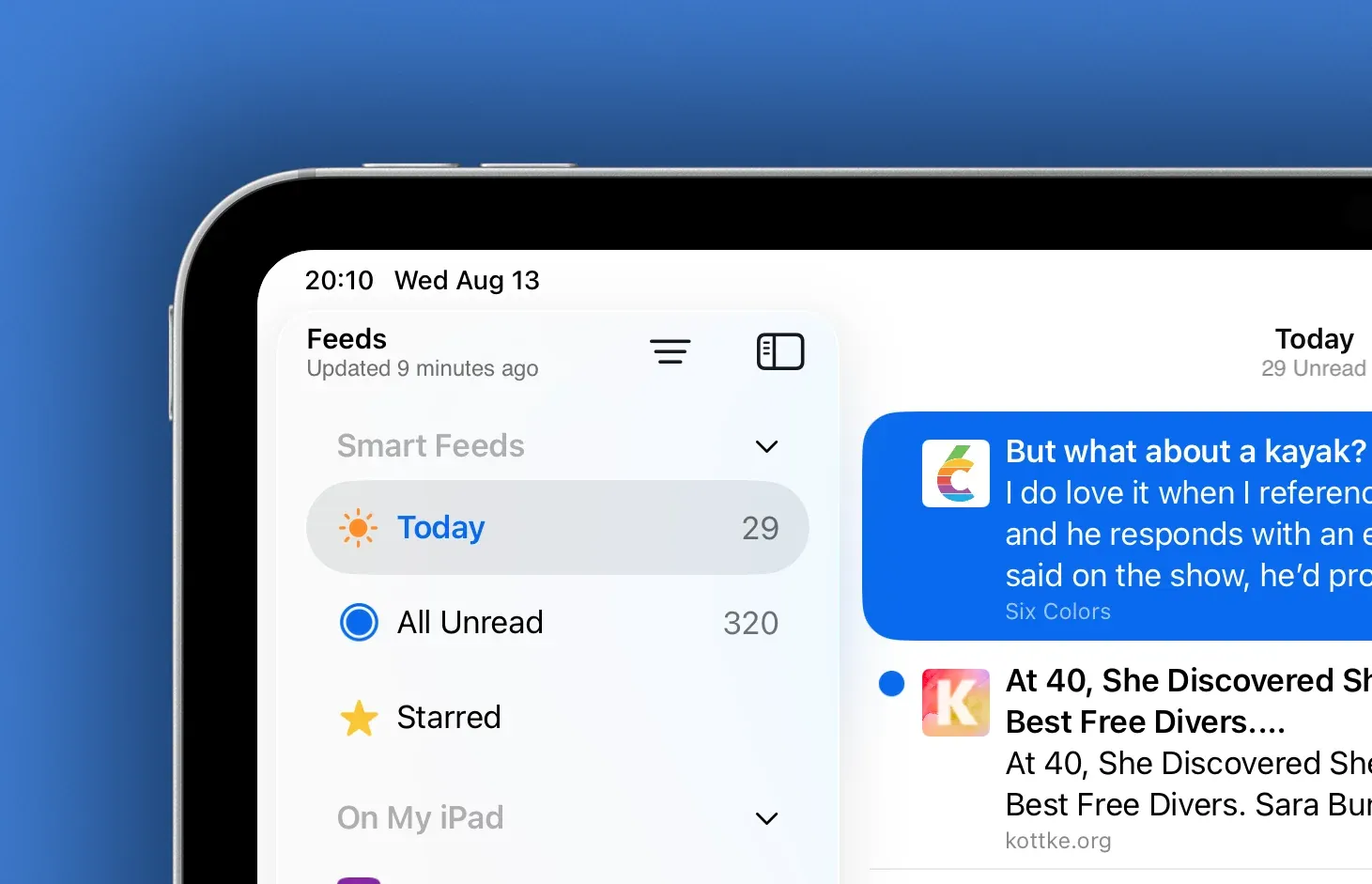
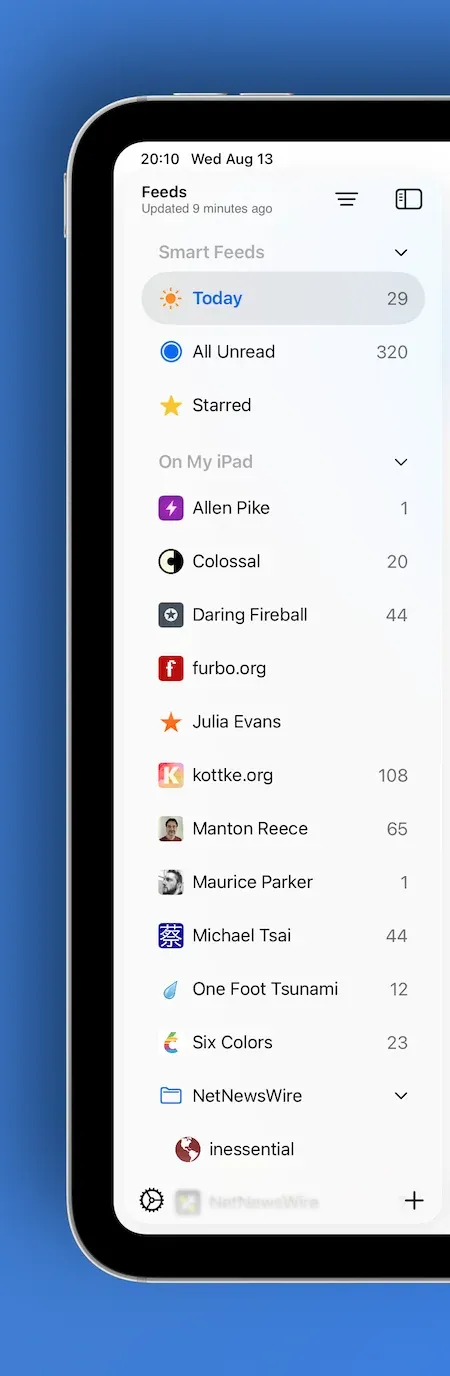
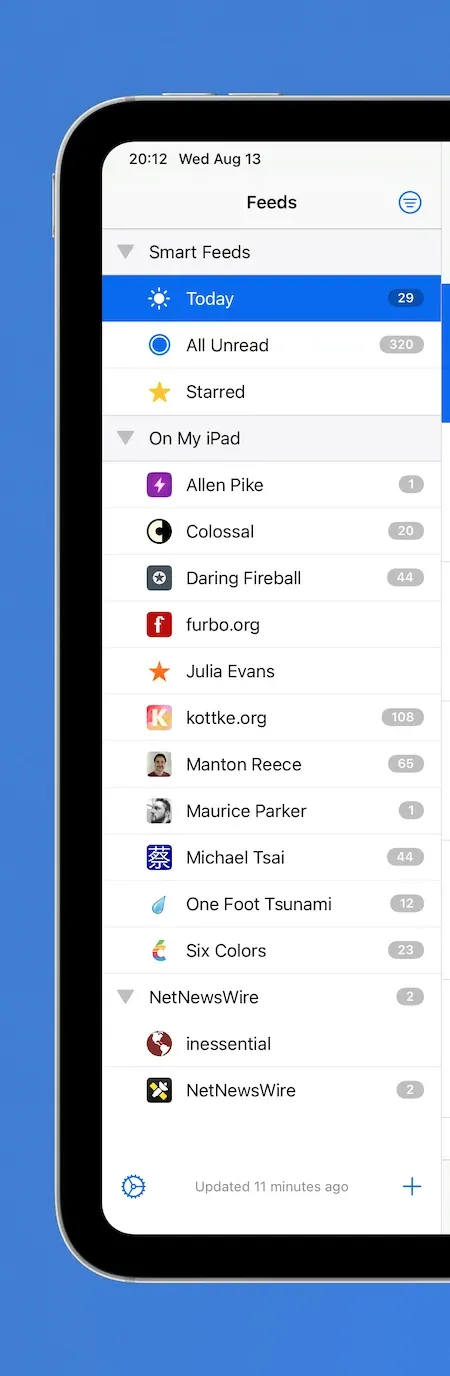
The Sidebar (Feeds view) has had a significant refresh.

What was previously a UITableView is now a UICollectionView. While this gives more flexibility in terms of custom layout, it was a change that was needed in order to adopt modern styling across iPad and iPhone. iPad uses the .sidebar style, and iPhone uses .insetGrouped. This is similar the behaviour you see in Mail.

Modern Sidebar (left), Classic Sidebar (right)

From top-to-bottom, the following modernising changes have been made:

  • The current *refresh *status is now located in the navigation bar as a subtitle, having previously been the footer
  • Toolbar buttons follow Liquid Glass standards
  • Like the Mac refresh, the Feeds view floats and allows Timeline content to slide underneath
  • Smart Feeds and Account headers now adopt modern secondary styling
  • Selected feeds have a modern capsule background and the text is **bold **(note: there is little consistency in Apple’s apps—Files makes text bold while Reminders doesn’t)
  • Folders have been entirely redesigned to match modern standards—they now have the same indentation as any other feed, but the enclosed feeds are indented further
  • Folders will highlight when Feeds are being dragged and dropped into them
  • Separators have been removed
  • Unread counts are larger and are no longer backed by a filled capsule
  • Unread counts for folders are only displayed when the folder is closed
  • Swipe actions reveal icons instead of named labels due to space constraints
  • Users can resize the sidebar (within reason 😃)

When side-by-side, you can see that there are less feeds on screen as the modern cells have larger vertical margins.

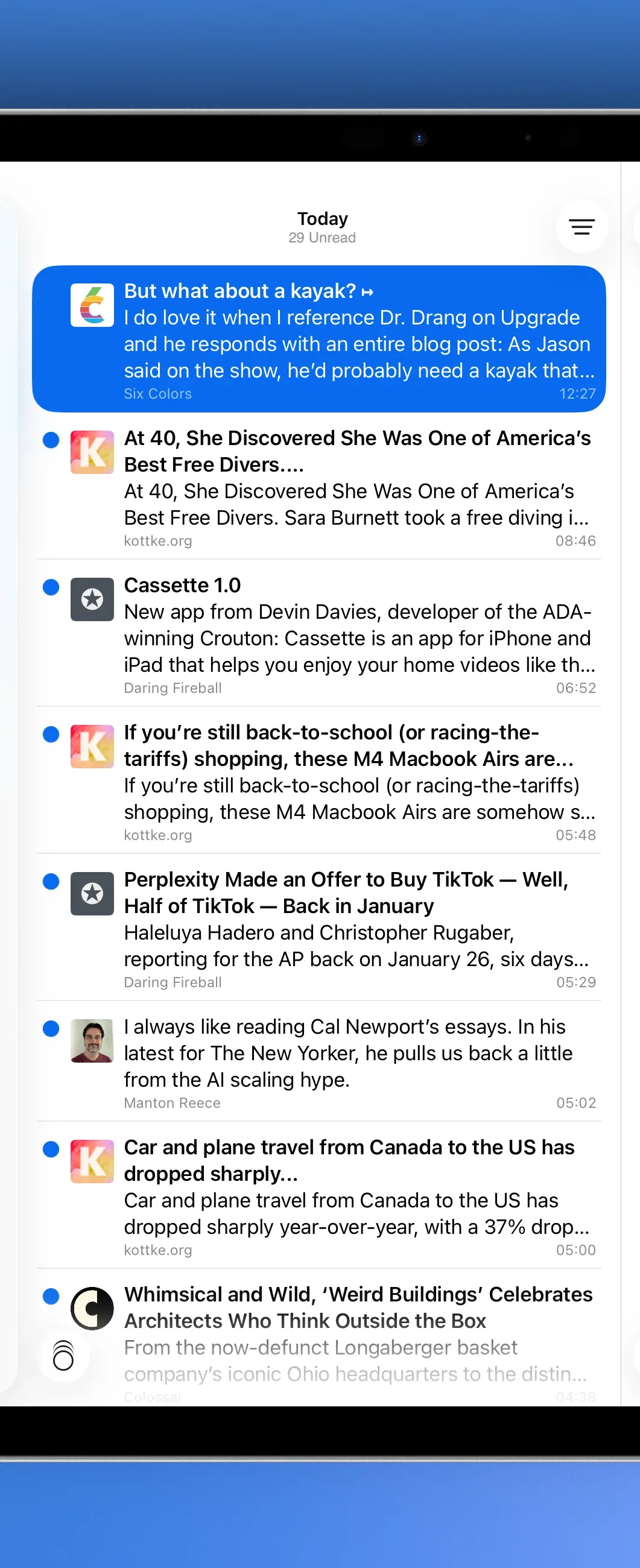
Timeline

Modern Timeline (left), Classic Timeline (right)

Again, from top-to-bottom:

  • Navigation bar images have been removed
  • Unread counts are now located in the navigation bar subtitle
  • The search bar has been moved to the app-wide toolbar and behaves similar to the Mac search
  • The Timeline width is user adjustable (again, within reason 😄)
  • Timeline cells have been redesigned in Interface builder and now have the rounded corner selection style
  • The Mark All as Read image (on both iPad and iPhone) has had alignment changes to make sure it sits in the middle of an englassified button

Articles

Modern Article (left), Classic Article (right)

There aren’t many changes to the Article view:

  • Articles can be read in three-pane view without hiding the Sidebar
  • The top toolbar inherits search capabilities
  • The bottom toolbar buttons have been grouped in a 2-1-2 formation with the *Next Unread *button sitting in the throne seat

iPhone

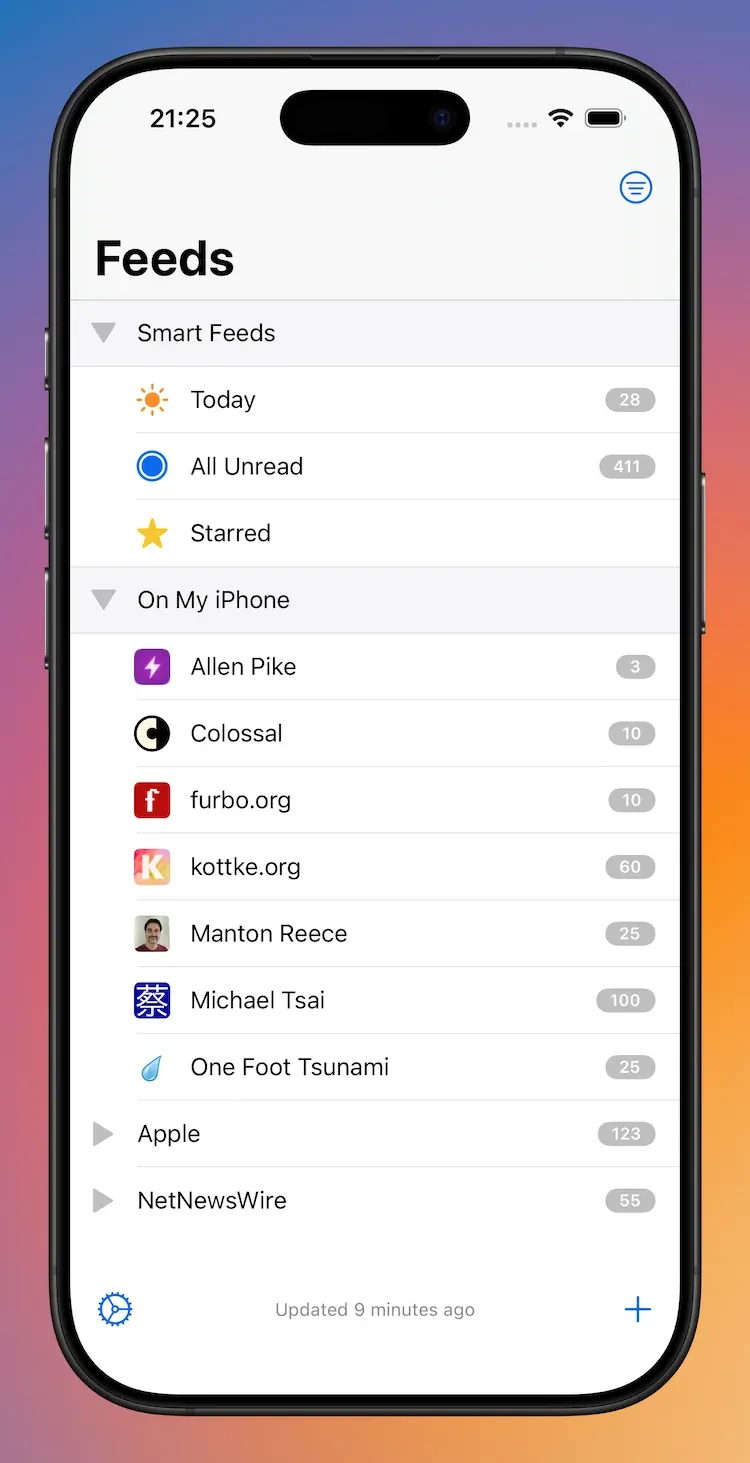
Similar to the iPad, the iPhone *Feeds view *has had a significant lick of paint.

Modern Feeds (left), Classic Feeds (right)

As mentioned above, the overall design adopts an .insetGrouped style. Comparatively:

  • Inline navigation titles are used
  • The latest refresh status has moved to the navigation bar subtitle from the bottom toolbar
  • Smart Feeds and Account headers now adopt modern styling
  • Disclosure indicators have moved from left to right
  • Similar to the iPad updates:
  • Folders will highlight when Feeds are being dragged and dropped into them
  • Unread counts are larger and are no longer backed by a filled capsule
  • Unread counts for folders are only displayed when the folder is closed
  • Swipe actions reveal icons instead of named labels due to space constraints

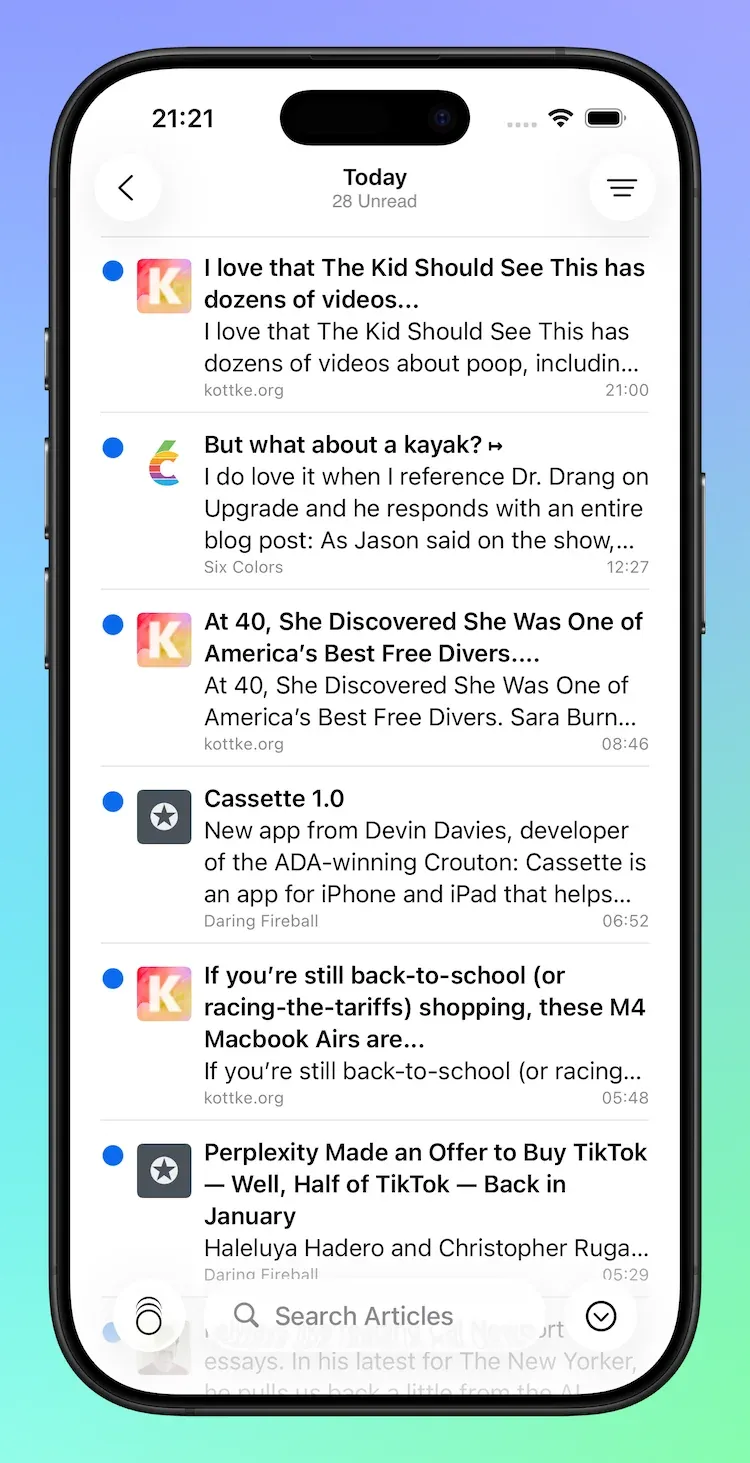
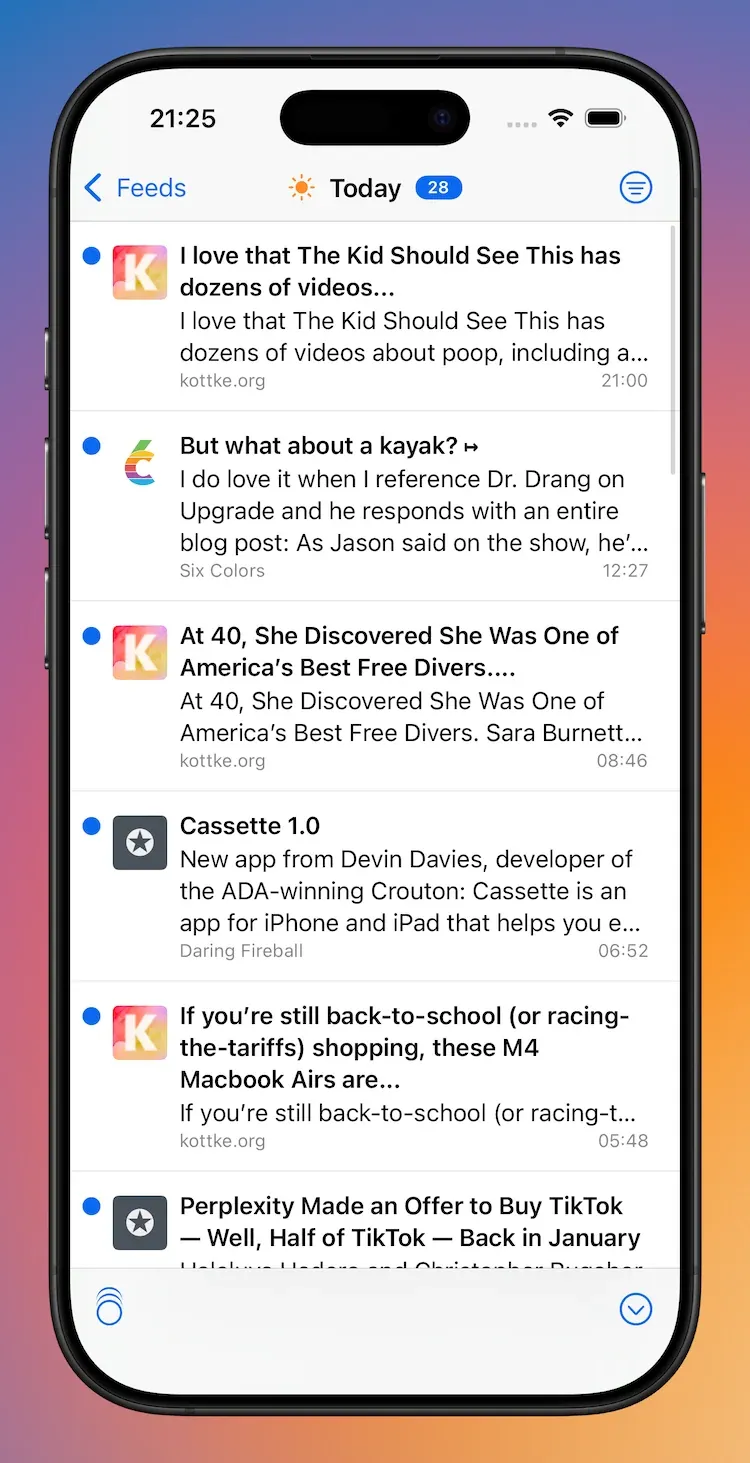
Timeline

Modern Timeline (left), Classic Timeline (right)

Timeline changes on the iPhone are slightly different to those of the iPad:

  • The navigation bar makes use of the subtitle to display either the current unread count or, if the unread count is zero, the latest refresh time
  • Images and capsule-backed unread counts have been removes from the navigation bar
  • The search bar has been moved to the bottom of the screen and is no longer hidden under the navigation bar
  • Cells have modern rounded corner selection style

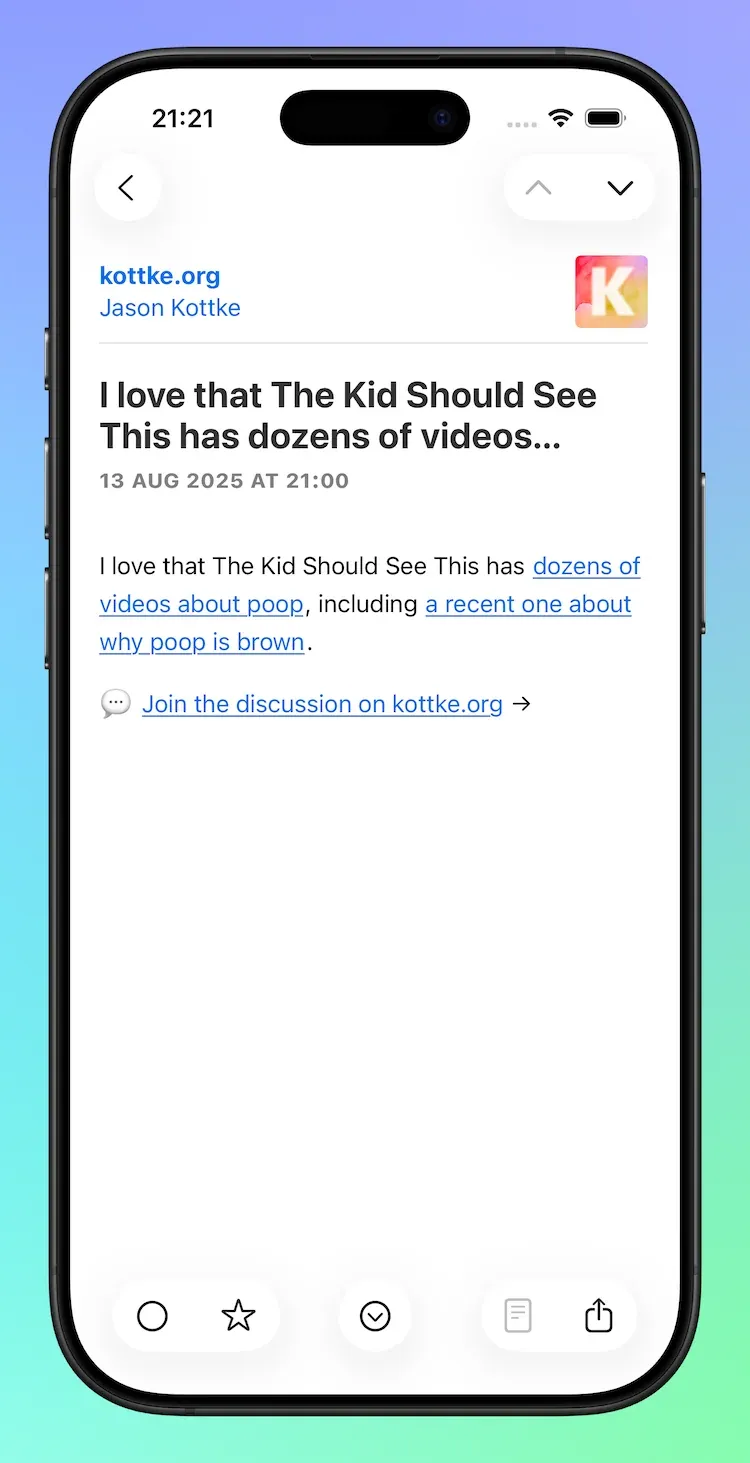
Articles

Modern Article (left); Classic Article (right)

There are almost no changes to the iPhone’s Article view other than adopting modern bar and button styling. Phew!

Adopting Liquid Glass, Part II (NetNewsWire Mac)

Adopting Liquid Glass, Part II (NetNewsWire Mac)

NetNewsWire has an experimental branch with work-in-progress Liquid Glass changes. These changes cover the Mac, iPad, and iPhone apps. This post covers changes on the Mac, which, in comparison to the iPad and iPhone app, are relatively minor.

The Sidebar adopts standard Liquid Glass behaviours which means it floats and allows timeline content to slide underneath.

0:00
/0:05

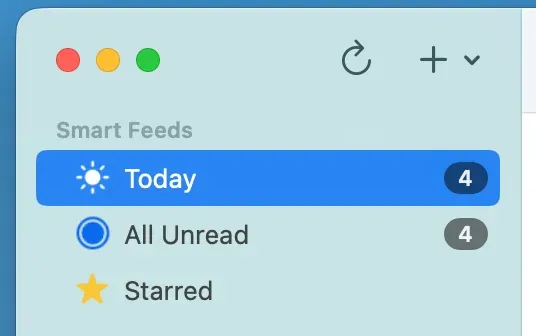
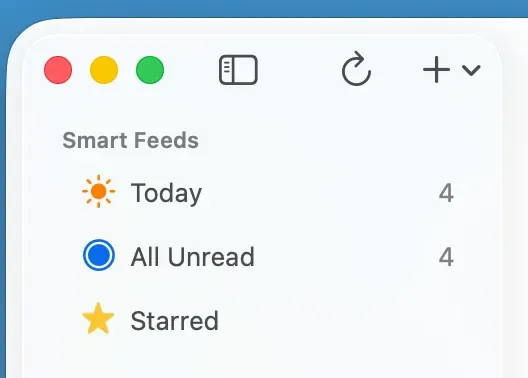
Unread indicators are no longer backed by a filled capsule. They are now just a simple unread count.

Old (left), New (right)

Toolbar

The Toolbar has seen a minor reorganisation which moves the sidebar toggle from the timeline into the sidebar. In addition, toolbar buttons adopt the standard Liquid Glass button look-and-feel.

NetNewsWire Toolbar

Timeline and Article Views

The Timeline and Article view have seen no changes other than to remove code that is no longer required.

Context Menus

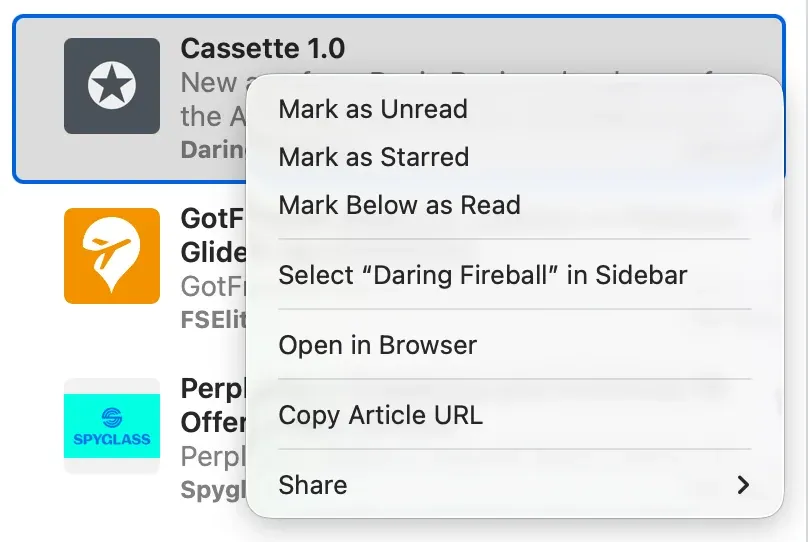
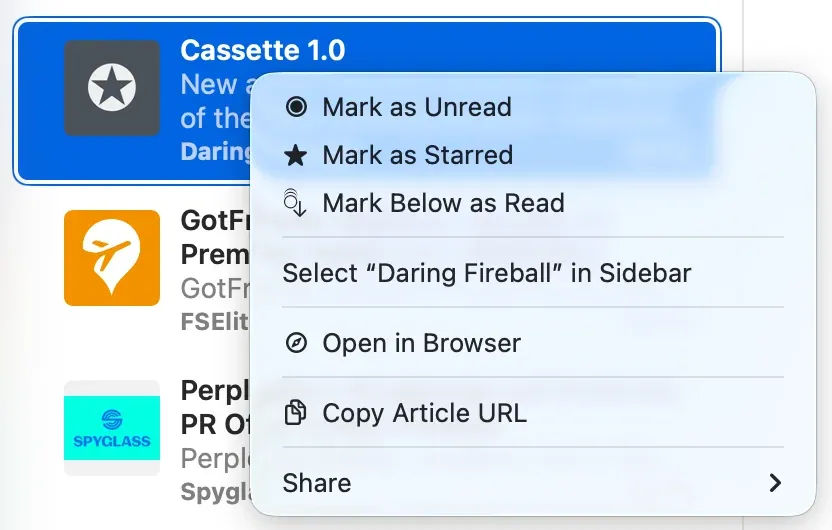
Context Menus have been updated with icons where appropriate.

Old (left), new (right)

About NetNewsWire

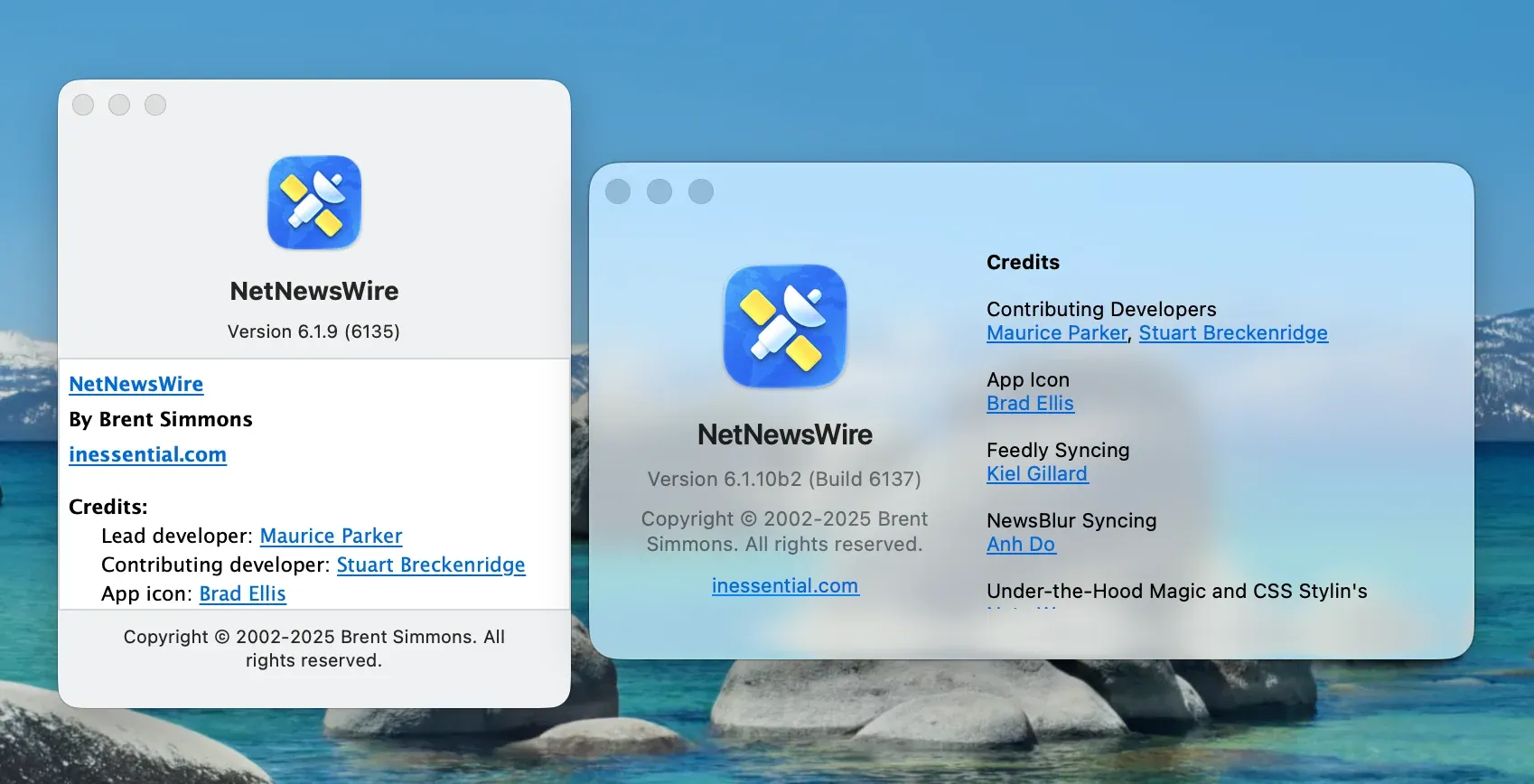
Lastly, the About NetNewsWire panel has been modernised in full:

  • Changed from a vertical to horizontal layout
  • Changed font from Lucida Grande to San Francisco
  • Adopts a *glass effect *background

Adopting Liquid Glass, Part I (Singapore Buses)

Adopting Liquid Glass, Part I (Singapore Buses)

Adopting Toolbars

In the current version of Singapore Buses the *Search *view obscures between 10% to 95% of the map, depending on its detent. In addition to showing search results, the *Search *view also shows nearest bus stops, favourite bus stops, and provides access to the app’s settings.

For the upgrade to Liquid Glass, I’m adopting a toolbar to address these issues.

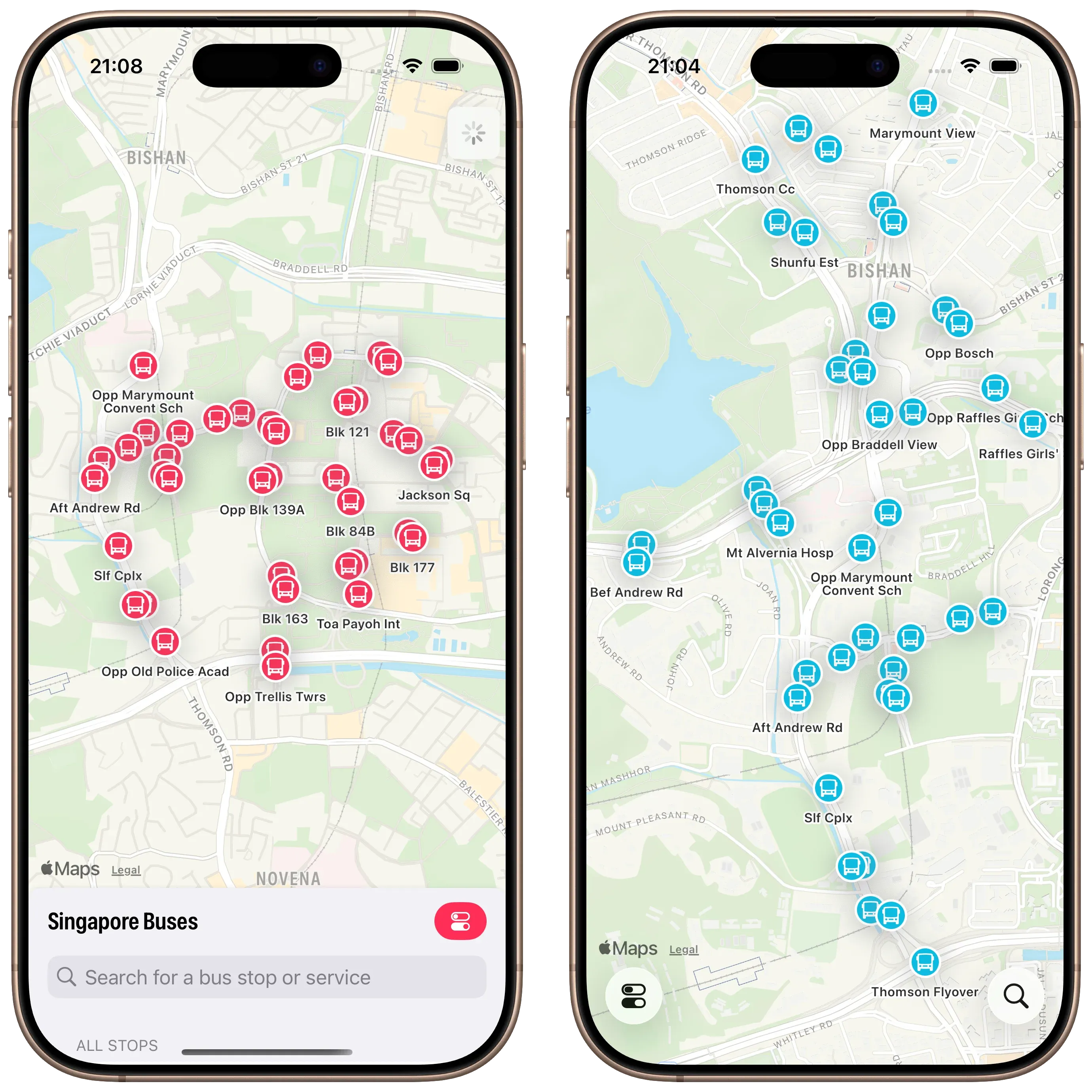
Screenshots showing Singapore Buses UI. Before and after

There are a few advantages to this approach.

First, there are more bus stops on the map *and *they update in real-time as you pan around the map1.

Second, although it’s not immediately apparent from the screenshot, the current version of Singapore Buses shows a janky animation when the Search view is moved to the medium detent—the map awkwardly re-centres itself during the transition. This is no longer a problem.

Third, *Search *only deals with bus stop search and favourites. *Settings *now lives on its own. It’s no longer sheet-on-top-of-sheet.

*Search *itself has been cleaned up.

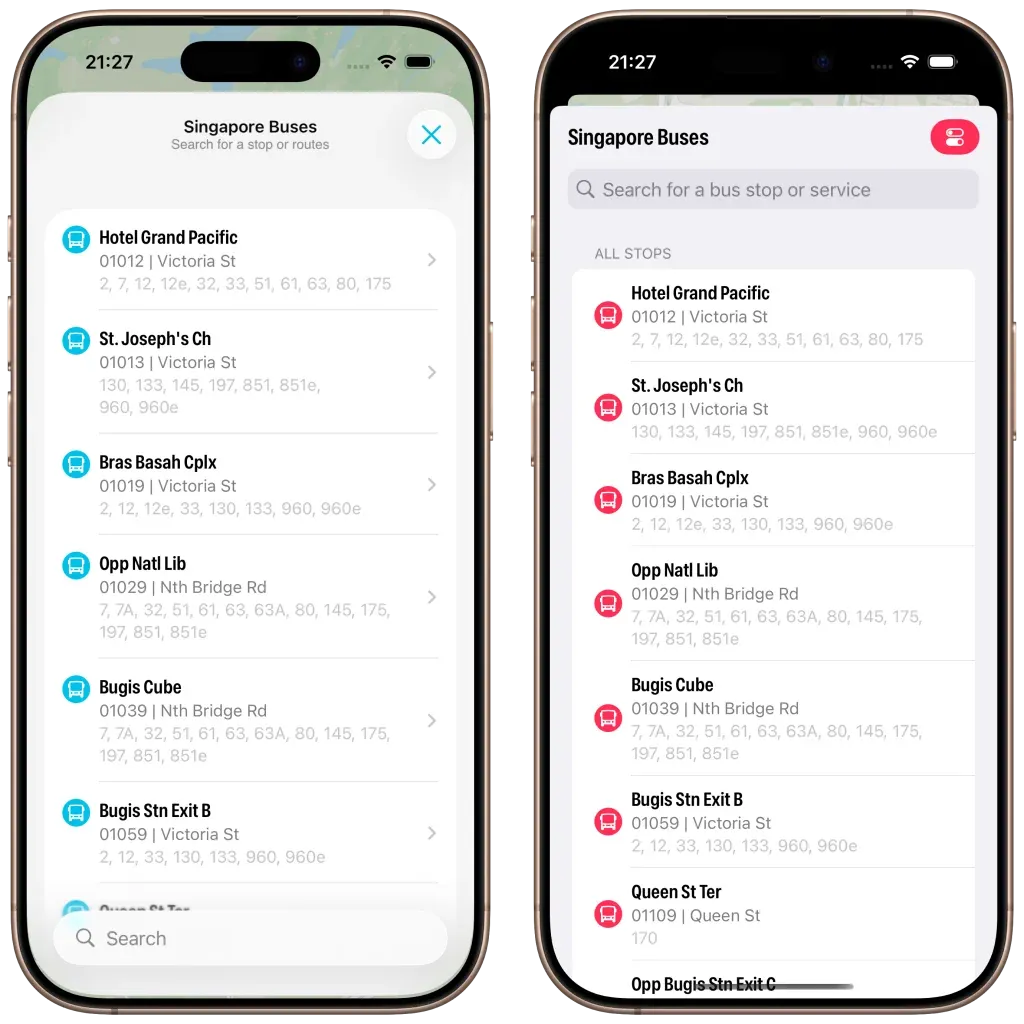
Screenshot of Singapore Buses search. Modern vs Legacy

The search bar now appears at the bottom, the background is now using materials (ultra thin in light mode; ultra thick in dark mode). I’ve also changed the bus stop icon to align to the top and I’ve adopted navigation bar subtitles.

However, what really strikes me about the above screenshot is how much *less *content is available due to the larger cell margins. In iOS 26 you can see six bus stops vs. seven bus stops (plus the name of the eighth) on iOS 18. It’s not a complaint, I do prefer the look of iOS 26.

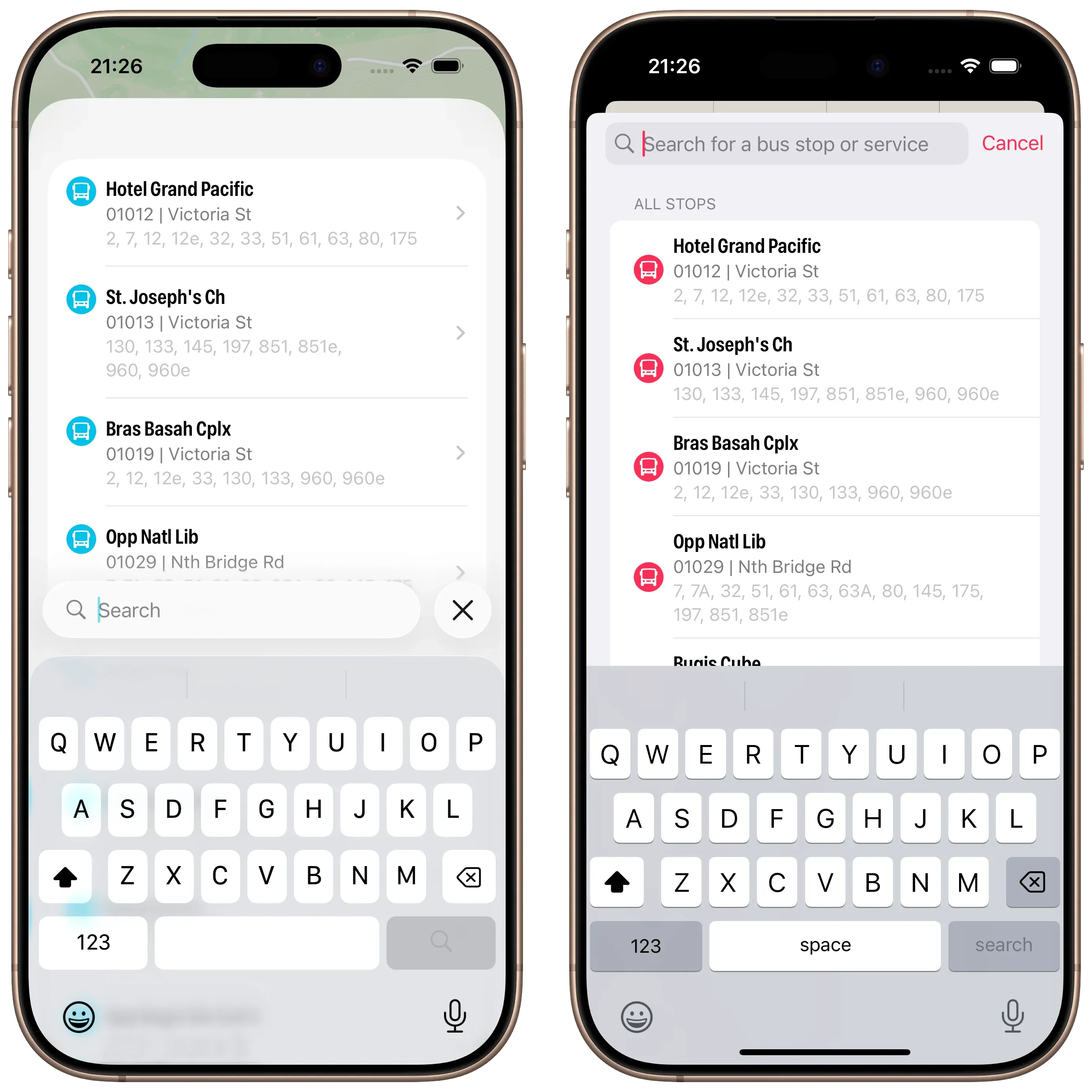
Screenshot of Singapore Buses Search with keyboard enabled. Search with Active Keyboard

Lastly, a look at Search with the keyboard activated. No changes here made by me, but I do prefer the look of the translucent keyboard with the search bar sitting on top.

Abandoning Tab Bars

When I started writing this article last week I was well on my way to adopting a Tab Bar and not a Toolbar. After a few days of testing I was pulling my hair out:

  • On my Map tab I was using a tabViewBottomAccessory to show the nearest bus stop to the user—to give them an easy way to tap and show arrival information. However, the accessory was available across all tabs where it made no sense (like Settings). Trying to hide the accessory (using EmptyView) when the selected tab wasn’t the map worked, but navigating back to the map caused the map to stop extending into the safe area, resulting in a lovely white bar along the top.2
  • Then there was the *Search *tab. It had a search bar that was fighting for space with other tabs, the tab bar accessory, and moving around based on scrolling actions. (Yes, you can control that to an extent, but is any of this tab bar behaviour a good idea in motion?)

So, the trusty toolbar has won out. Next up: redesigning *Settings *and Arrivals.

Redesigning the Arrivals view and Settings coming up next.


  1. In the live version of Singapore Buses bus stops only appear once you’ve stopped panning.

  2. FB18767040